Soulmask Server Setup Guide: Difference between revisions
(Updated for Soulmask 1.0 launch) |
|||
| (One intermediate revision by the same user not shown) | |||
| Line 1: | Line 1: | ||
Creating a Soulmask game server is an easy process that can be done from either a dedicated server or your home computer. Alternatively, you can choose a Soulmask server that will fit your needs. | Creating a Soulmask game server is an easy process that can be done from either a dedicated server or your home computer. Alternatively, you can choose a [https://www.survivalservers.com/game-servers/soulmask/ Soulmask server] that will fit your needs. | ||
'''Note:''' Soulmask 1.0 launched on April 10, 2026, bringing the game out of Early Access. This guide has been updated for the 1.0 release. | |||
== Option #1: Renting a Soulmask server (see example control panel below!) == | == Option #1: Renting a Soulmask server (see example control panel below!) == | ||
| Line 6: | Line 8: | ||
== Option #2: Creating a Soulmask Server From Your Home Computer or Dedicated Server == | == Option #2: Creating a Soulmask Server From Your Home Computer or Dedicated Server == | ||
== Server Requirements == | == Server Requirements == | ||
Windows | * Windows 10 64-bit or Windows Server 2019 (minimum), or Linux | ||
* Quad Core processor recommended (minimum Dual Core) | |||
* '''16GB RAM minimum''' (the server process alone requires 12GB+) | |||
* 30GB free disk space (more if running both maps) | |||
* Ports: UDP 8777 (game), UDP 27015 (query), TCP 18888 (telnet console), TCP 19000 (RCON) | |||
== Game Modes == | |||
Soulmask 1.0 introduces multiple game modes: | |||
* '''Survival Mode''' — The classic experience with rebalanced mid-to-late game progression. This is the default mode. | |||
* '''Tribe Mode''' — Focuses on tribesman management, automation, and civilization building. Includes a Tribe Upgrade System, a unique Tech Tree tied to Tribe Level, random merchant events, a reputation system, and more aggressive invasions with Invasion Totems. | |||
* '''PVP Mode''' — Player versus player combat with full PvP rules enabled. | |||
* '''Warrior Mode''' — A combat-heavy speedrun mode. Near-death state, building decay, invasions, and inventory drops on death are disabled. You start with a blank character (Common quality, no talents) plus a starter gear kit. Features more enemies, smarter AI, nerfed dodge i-frames, and accelerated progression. | |||
All modes remain fully customizable through the GameXishu.json configuration system (see below). | |||
'''Note:''' Game mode availability on dedicated servers may depend on server version. Check the [https://store.steampowered.com/app/2646460/Soulmask/ official Steam page] for the latest information on mode support. | |||
== Setting up a Soulmask Dedicated Server == | == Setting up a Soulmask Dedicated Server == | ||
== Step 1: Fetching Game Server files == | === Step 1: Fetching Game Server Files === | ||
# Create a folder where you wish to store your Soulmask game server hosting files (e.g., <code>C:\SoulmaskServer</code>). | |||
# Download [https://developer.valvesoftware.com/wiki/SteamCMD SteamCMD] and extract it into your server folder. | |||
# Create a batch file named '''UpdateSoulmask.bat''' with the following content: | |||
<pre> | |||
@echo off | |||
steamcmd.exe +login anonymous +force_install_dir C:\SoulmaskServer +app_update 3017310 validate +quit | |||
</pre> | |||
# Right-click '''UpdateSoulmask.bat''' and Run as Administrator. | |||
# Wait for the download to complete. The server files will be in your install directory. | |||
'''Linux users:''' Use SteamCMD app ID '''3017300''' instead of 3017310. | |||
=== Step 2: Setting up the Dedicated Server === | |||
Create a batch file named '''StartServer.bat''' in your server folder with the following content: | |||
<pre> | |||
WSServer-Win64-Shipping.exe Level01_Main -server -log -UTF8Output -forcepassthrough -MULTIHOME=0.0.0.0 -Port=8777 -QueryPort=27015 -EchoPort=18888 -SteamServerName="My Soulmask Server" -MaxPlayers=60 -PSW="joinpassword" -adminpsw="adminpassword" -pve -saving=300 -backup=900 -online=Steam -rconpsw="rconpassword" -rconaddr=0.0.0.0 -rconport=19000 | |||
</pre> | |||
'''Important:''' Replace the passwords and server name with your own values. Remove <code>-PSW="joinpassword"</code> if you don't want a join password. | |||
=== Step 3: Port Forwarding === | |||
Forward the following ports on your router: | |||
{| class="wikitable" | |||
|- | |||
! Port !! Protocol !! Purpose | |||
|- | |||
| 8777 || UDP || Game connections | |||
|- | |||
| 27015 || UDP || Steam server browser / query | |||
|- | |||
| 18888 || TCP || Telnet admin console (optional, local only recommended) | |||
|- | |||
| 19000 || TCP || RCON remote console (optional) | |||
|} | |||
'''Firewall note:''' Make sure Windows Firewall (or your Linux firewall) allows inbound traffic on these ports. If your server doesn't appear in the server browser, double-check that both game port (8777 UDP) and query port (27015 UDP) are open. You can find your server's invitation code in the <code>WS.log</code> file (see File Locations below) — players can use this code to connect directly if the server browser doesn't list it. | |||
== Server Launch Parameters == | |||
{| class="wikitable" | |||
|- | |||
! Parameter !! Default !! Description | |||
|- | |||
| <code>-server</code> || — || Required. Launches in dedicated server mode. | |||
|- | |||
| <code>-log</code> || — || Enables console logging. | |||
|- | |||
| <code>-UTF8Output</code> || — || Enables Unicode/non-Latin character support. | |||
|- | |||
| <code>-forcepassthrough</code> || — || Required parameter. | |||
|- | |||
| <code>-MULTIHOME=IP</code> || 0.0.0.0 || Bind to a specific network interface. | |||
|- | |||
| <code>-Port=PORT</code> || 8777 || UDP game port for player connections. | |||
|- | |||
| <code>-QueryPort=PORT</code> || 27015 || UDP Steam query port for server browser. | |||
|- | |||
| <code>-EchoPort=PORT</code> || 18888 || TCP telnet console port. | |||
|- | |||
| <code>-SteamServerName="NAME"</code> || — || Server name shown in server browser. | |||
|- | |||
| <code>-MaxPlayers=N</code> || 60 || Maximum concurrent players (up to 70). | |||
|- | |||
| <code>-PSW="PASSWORD"</code> || — || Password required to join the server. | |||
|- | |||
| <code>-adminpsw="PASSWORD"</code> || — || GM/admin password for in-game admin panel. | |||
|- | |||
| <code>-pve</code> || — || Enables PvE mode. | |||
|- | |||
| <code>-pvp</code> || — || Enables PvP mode. | |||
|- | |||
| <code>-saving=SECONDS</code> || 300 || Memory save interval in seconds. | |||
|- | |||
| <code>-backup=SECONDS</code> || 900 || Disk backup interval in seconds. | |||
|- | |||
| <code>-initbackup</code> || — || Create a backup on server startup. | |||
|- | |||
| <code>-rconpsw="PASSWORD"</code> || — || RCON password. Required to enable RCON. | |||
|- | |||
| <code>-rconaddr=IP</code> || 0.0.0.0 || RCON bind address. Use <code>127.0.0.1</code> to restrict to local only. | |||
|- | |||
| <code>-rconport=PORT</code> || 19000 || RCON TCP port. | |||
|- | |||
| <code>-GongHuiMaxMember=N</code> || 20 || Maximum tribe member count. | |||
|- | |||
| <code>-online=Steam</code> || Steam || Online subsystem (use Steam for public servers). | |||
|- | |||
| <code>-serverpm=MASK</code> || — || Permission lists for player management (whitelist/blacklist/banning). | |||
|- | |||
| <code>-gamedistindex=N</code> || — || Region index (0-7) for event scheduling and time zones. | |||
|} | |||
== Safe Shutdown == | |||
'''Do not''' close the server window directly — this can cause save corruption. Instead, use one of these methods: | |||
* '''Telnet (Echo port):''' Connect to the EchoPort (default 18888) using a telnet client and issue a save/shutdown command. | |||
* '''RCON:''' If RCON is enabled, connect via an RCON client and issue a shutdown command. | |||
* '''In-game:''' Use the GM panel to save the world, then close the server gracefully. | |||
* '''Ctrl+C:''' In the server console window, press Ctrl+C to trigger a graceful shutdown with auto-save. | |||
The server auto-saves at the interval set by <code>-saving</code> (default 300 seconds / 5 minutes). Backups are written to disk at the <code>-backup</code> interval (default 900 seconds / 15 minutes). | |||
== Maps == | |||
Soulmask supports two maps: | |||
* '''Cloud Mist Forest''' (default) — The original map. Use <code>Level01_Main</code> as the map parameter. | |||
* '''Shifting Sands''' (DLC) — An Egypt-themed expansion map. Use <code>DLC_Level01_Main</code> as the map parameter. Requires the [https://store.steampowered.com/app/3966020/Soulmask_Shifting_Sands/ Shifting Sands DLC] (free to claim from April 10 to May 10, 2026). | |||
To run the Shifting Sands map, change the map name in your launch command: | |||
<pre> | |||
WSServer-Win64-Shipping.exe DLC_Level01_Main -server -log ... | |||
</pre> | |||
=== Cross-Map Server Cluster === | |||
To allow players to travel between Cloud Mist Forest and Shifting Sands, you need to run '''two servers''' and link them as a cluster. | |||
'''Main Server''' (Cloud Mist Forest): | |||
<pre> | |||
WSServer-Win64-Shipping.exe Level01_Main -server -serverid=1 -mainserverport=8781 ... | |||
</pre> | |||
'''Child Server''' (Shifting Sands): | |||
<pre> | |||
WSServer-Win64-Shipping.exe DLC_Level01_Main -server -serverid=2 -clientserverconnect=MAIN_IP:8781 ... | |||
</pre> | |||
'''Cluster requirements:''' | |||
* Each server must have a '''unique server ID''' (<code>-serverid</code>). | |||
* Both servers should use the '''same join password''' (<code>-PSW</code>) and the '''same game mode'''. | |||
* Each server needs its own '''unique set of ports''' (game, query, echo, RCON) — they cannot share ports. | |||
* Cross-server mode must be enabled: set <code>KaiQiKuaFu=1</code> in GameXishu.json on both servers. | |||
* The child server connects to the main server via <code>-clientserverconnect=MAIN_IP:PORT</code>. | |||
'''What transfers between maps:''' | |||
* Character data (level, mask, tech tree, tribesmen) transfers via an ocean portal. | |||
* Buildings, placed resources, and local inventory do '''not''' transfer. | |||
* Starting characters (newly created) cannot transfer — they must progress first. | |||
'''Important:''' Converting an existing standalone server save to a cluster setup changes account-data storage. Back up your world save before attempting this. | |||
== GameXishu.json (Gameplay Settings) == | |||
Soulmask stores its gameplay configuration in <code>GameXishu.json</code>, located at: | |||
<pre> | |||
WS\Saved\GameplaySettings\GameXishu.json | |||
</pre> | |||
This file controls experience rates, resource gathering rates, combat damage, crafting speeds, invasion difficulty, tribe limits, building decay, and many other server settings. If you're renting from Survival Servers, these settings are available through the '''Modify Server Config''' button in the control panel. | |||
Key setting categories include: | |||
* '''Experience & Progression''' — XP multipliers for awareness, character, mask, proficiency, gathering, crafting, and combat. | |||
* '''Resources & Crafting''' — Drop rates for gathering, mining, logging, slaughtering, and crafting speed. | |||
* '''Survival''' — Food/water/durability consumption rates, item decay timers, carry weight, inventory size. | |||
* '''Combat''' — PvE and PvP damage ratios, dodge i-frame duration, structure damage. | |||
* '''Tribe & Taming''' — Recruitment limits, taming speed, animal limits, hibernation settings. | |||
* '''Building''' — Decay rate, repair speed, construction limits, portal settings, conveyor/power mine limits. | |||
* '''Invasions''' — Heat accumulation, invasion scale/strength, enemy count, cooldown timers, attack windows. | |||
* '''Cluster''' — Cross-server mode toggle (<code>KaiQiKuaFu</code>), battle mode access. | |||
'''Note:''' The <code>GameXishu.json</code> file and the <code>WS\Saved\Config\</code> directory are created after the server's first run. If these files don't exist yet, start the server once and shut it down, then edit the files. | |||
== File Locations == | |||
{| class="wikitable" | |||
|- | |||
! File !! Path | |||
|- | |||
| Server executable || <code>WS\Binaries\Win64\WSServer-Win64-Shipping.exe</code> | |||
|- | |||
| World save || <code>WS\Saved\Worlds\Dedicated\Level01_Main\world.db</code> | |||
|- | |||
| Server config || <code>WS\Saved\Config\WindowsServer\</code> (Engine.ini, Game.ini, GameUserSettings.ini) | |||
|- | |||
| Gameplay settings || <code>WS\Saved\GameplaySettings\GameXishu.json</code> | |||
|- | |||
| Server logs || <code>WS\Saved\Logs\WS.log</code> (contains invitation code for direct connect) | |||
|- | |||
| Backups || <code>WS\Saved\Worlds\Dedicated\Level01_Main\backup\</code> | |||
|} | |||
'''Backup tip:''' The <code>world.db</code> file is your complete world save. Back it up regularly. The server creates automatic backups based on your <code>-backup</code> parameter. | |||
== | == SteamCMD App IDs == | ||
{| class="wikitable" | |||
|- | |||
! Platform !! App ID | |||
|- | |||
| Windows Dedicated Server || 3017310 | |||
|- | |||
| Linux Dedicated Server || 3017300 | |||
|} | |||
Latest revision as of 19:09, 9 April 2026
Creating a Soulmask game server is an easy process that can be done from either a dedicated server or your home computer. Alternatively, you can choose a Soulmask server that will fit your needs.
Note: Soulmask 1.0 launched on April 10, 2026, bringing the game out of Early Access. This guide has been updated for the 1.0 release.
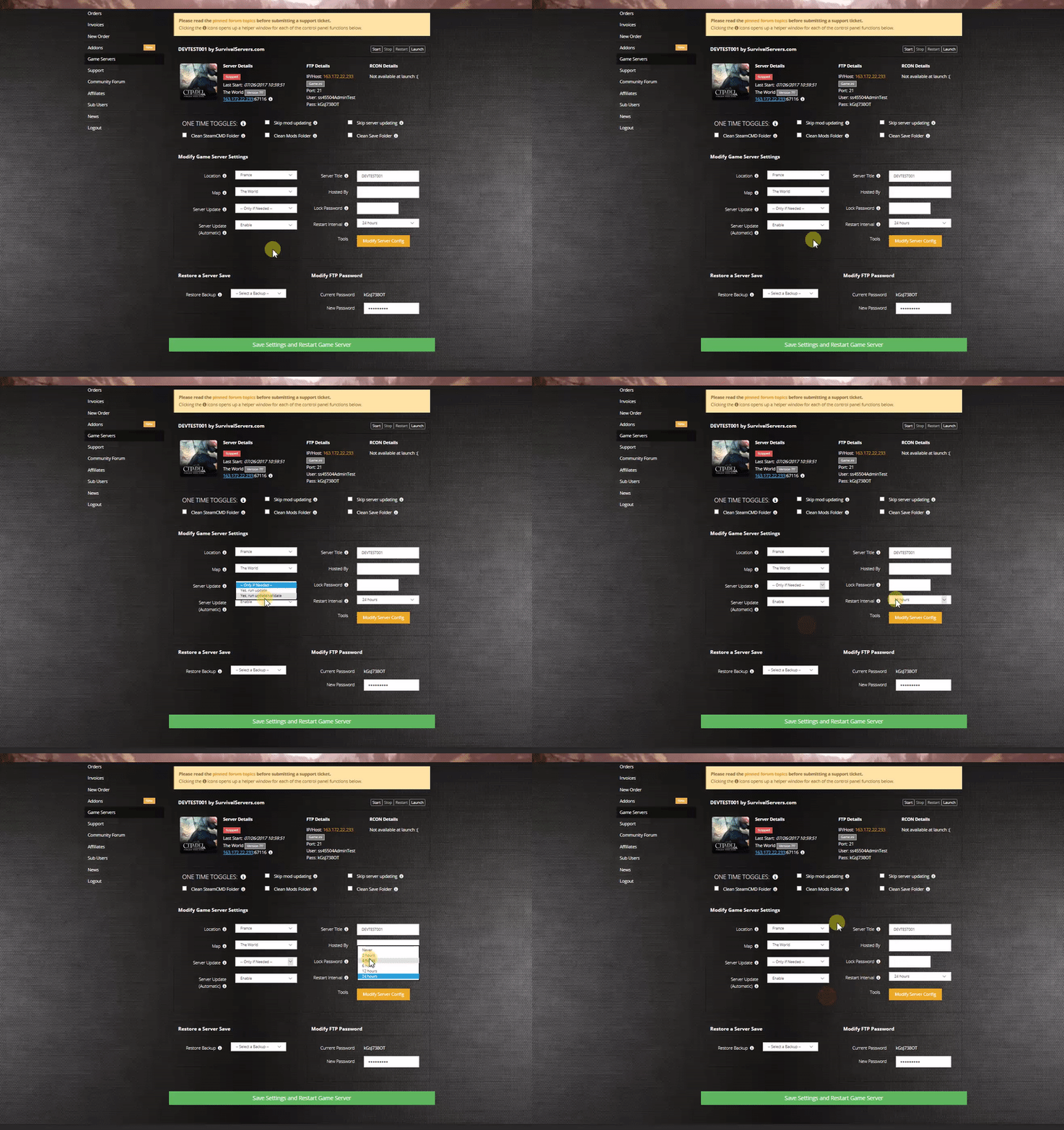
Option #1: Renting a Soulmask server (see example control panel below!)
Option #2: Creating a Soulmask Server From Your Home Computer or Dedicated Server
Server Requirements
- Windows 10 64-bit or Windows Server 2019 (minimum), or Linux
- Quad Core processor recommended (minimum Dual Core)
- 16GB RAM minimum (the server process alone requires 12GB+)
- 30GB free disk space (more if running both maps)
- Ports: UDP 8777 (game), UDP 27015 (query), TCP 18888 (telnet console), TCP 19000 (RCON)
Game Modes
Soulmask 1.0 introduces multiple game modes:
- Survival Mode — The classic experience with rebalanced mid-to-late game progression. This is the default mode.
- Tribe Mode — Focuses on tribesman management, automation, and civilization building. Includes a Tribe Upgrade System, a unique Tech Tree tied to Tribe Level, random merchant events, a reputation system, and more aggressive invasions with Invasion Totems.
- PVP Mode — Player versus player combat with full PvP rules enabled.
- Warrior Mode — A combat-heavy speedrun mode. Near-death state, building decay, invasions, and inventory drops on death are disabled. You start with a blank character (Common quality, no talents) plus a starter gear kit. Features more enemies, smarter AI, nerfed dodge i-frames, and accelerated progression.
All modes remain fully customizable through the GameXishu.json configuration system (see below).
Note: Game mode availability on dedicated servers may depend on server version. Check the official Steam page for the latest information on mode support.
Setting up a Soulmask Dedicated Server
Step 1: Fetching Game Server Files
- Create a folder where you wish to store your Soulmask game server hosting files (e.g.,
C:\SoulmaskServer). - Download SteamCMD and extract it into your server folder.
- Create a batch file named UpdateSoulmask.bat with the following content:
@echo off
steamcmd.exe +login anonymous +force_install_dir C:\SoulmaskServer +app_update 3017310 validate +quit
- Right-click UpdateSoulmask.bat and Run as Administrator.
- Wait for the download to complete. The server files will be in your install directory.
Linux users: Use SteamCMD app ID 3017300 instead of 3017310.
Step 2: Setting up the Dedicated Server
Create a batch file named StartServer.bat in your server folder with the following content:
WSServer-Win64-Shipping.exe Level01_Main -server -log -UTF8Output -forcepassthrough -MULTIHOME=0.0.0.0 -Port=8777 -QueryPort=27015 -EchoPort=18888 -SteamServerName="My Soulmask Server" -MaxPlayers=60 -PSW="joinpassword" -adminpsw="adminpassword" -pve -saving=300 -backup=900 -online=Steam -rconpsw="rconpassword" -rconaddr=0.0.0.0 -rconport=19000
Important: Replace the passwords and server name with your own values. Remove -PSW="joinpassword" if you don't want a join password.
Step 3: Port Forwarding
Forward the following ports on your router:
| Port | Protocol | Purpose |
|---|---|---|
| 8777 | UDP | Game connections |
| 27015 | UDP | Steam server browser / query |
| 18888 | TCP | Telnet admin console (optional, local only recommended) |
| 19000 | TCP | RCON remote console (optional) |
Firewall note: Make sure Windows Firewall (or your Linux firewall) allows inbound traffic on these ports. If your server doesn't appear in the server browser, double-check that both game port (8777 UDP) and query port (27015 UDP) are open. You can find your server's invitation code in the WS.log file (see File Locations below) — players can use this code to connect directly if the server browser doesn't list it.
Server Launch Parameters
| Parameter | Default | Description |
|---|---|---|
-server |
— | Required. Launches in dedicated server mode. |
-log |
— | Enables console logging. |
-UTF8Output |
— | Enables Unicode/non-Latin character support. |
-forcepassthrough |
— | Required parameter. |
-MULTIHOME=IP |
0.0.0.0 | Bind to a specific network interface. |
-Port=PORT |
8777 | UDP game port for player connections. |
-QueryPort=PORT |
27015 | UDP Steam query port for server browser. |
-EchoPort=PORT |
18888 | TCP telnet console port. |
-SteamServerName="NAME" |
— | Server name shown in server browser. |
-MaxPlayers=N |
60 | Maximum concurrent players (up to 70). |
-PSW="PASSWORD" |
— | Password required to join the server. |
-adminpsw="PASSWORD" |
— | GM/admin password for in-game admin panel. |
-pve |
— | Enables PvE mode. |
-pvp |
— | Enables PvP mode. |
-saving=SECONDS |
300 | Memory save interval in seconds. |
-backup=SECONDS |
900 | Disk backup interval in seconds. |
-initbackup |
— | Create a backup on server startup. |
-rconpsw="PASSWORD" |
— | RCON password. Required to enable RCON. |
-rconaddr=IP |
0.0.0.0 | RCON bind address. Use 127.0.0.1 to restrict to local only.
|
-rconport=PORT |
19000 | RCON TCP port. |
-GongHuiMaxMember=N |
20 | Maximum tribe member count. |
-online=Steam |
Steam | Online subsystem (use Steam for public servers). |
-serverpm=MASK |
— | Permission lists for player management (whitelist/blacklist/banning). |
-gamedistindex=N |
— | Region index (0-7) for event scheduling and time zones. |
Safe Shutdown
Do not close the server window directly — this can cause save corruption. Instead, use one of these methods:
- Telnet (Echo port): Connect to the EchoPort (default 18888) using a telnet client and issue a save/shutdown command.
- RCON: If RCON is enabled, connect via an RCON client and issue a shutdown command.
- In-game: Use the GM panel to save the world, then close the server gracefully.
- Ctrl+C: In the server console window, press Ctrl+C to trigger a graceful shutdown with auto-save.
The server auto-saves at the interval set by -saving (default 300 seconds / 5 minutes). Backups are written to disk at the -backup interval (default 900 seconds / 15 minutes).
Maps
Soulmask supports two maps:
- Cloud Mist Forest (default) — The original map. Use
Level01_Mainas the map parameter. - Shifting Sands (DLC) — An Egypt-themed expansion map. Use
DLC_Level01_Mainas the map parameter. Requires the Shifting Sands DLC (free to claim from April 10 to May 10, 2026).
To run the Shifting Sands map, change the map name in your launch command:
WSServer-Win64-Shipping.exe DLC_Level01_Main -server -log ...
Cross-Map Server Cluster
To allow players to travel between Cloud Mist Forest and Shifting Sands, you need to run two servers and link them as a cluster.
Main Server (Cloud Mist Forest):
WSServer-Win64-Shipping.exe Level01_Main -server -serverid=1 -mainserverport=8781 ...
Child Server (Shifting Sands):
WSServer-Win64-Shipping.exe DLC_Level01_Main -server -serverid=2 -clientserverconnect=MAIN_IP:8781 ...
Cluster requirements:
- Each server must have a unique server ID (
-serverid). - Both servers should use the same join password (
-PSW) and the same game mode. - Each server needs its own unique set of ports (game, query, echo, RCON) — they cannot share ports.
- Cross-server mode must be enabled: set
KaiQiKuaFu=1in GameXishu.json on both servers. - The child server connects to the main server via
-clientserverconnect=MAIN_IP:PORT.
What transfers between maps:
- Character data (level, mask, tech tree, tribesmen) transfers via an ocean portal.
- Buildings, placed resources, and local inventory do not transfer.
- Starting characters (newly created) cannot transfer — they must progress first.
Important: Converting an existing standalone server save to a cluster setup changes account-data storage. Back up your world save before attempting this.
GameXishu.json (Gameplay Settings)
Soulmask stores its gameplay configuration in GameXishu.json, located at:
WS\Saved\GameplaySettings\GameXishu.json
This file controls experience rates, resource gathering rates, combat damage, crafting speeds, invasion difficulty, tribe limits, building decay, and many other server settings. If you're renting from Survival Servers, these settings are available through the Modify Server Config button in the control panel.
Key setting categories include:
- Experience & Progression — XP multipliers for awareness, character, mask, proficiency, gathering, crafting, and combat.
- Resources & Crafting — Drop rates for gathering, mining, logging, slaughtering, and crafting speed.
- Survival — Food/water/durability consumption rates, item decay timers, carry weight, inventory size.
- Combat — PvE and PvP damage ratios, dodge i-frame duration, structure damage.
- Tribe & Taming — Recruitment limits, taming speed, animal limits, hibernation settings.
- Building — Decay rate, repair speed, construction limits, portal settings, conveyor/power mine limits.
- Invasions — Heat accumulation, invasion scale/strength, enemy count, cooldown timers, attack windows.
- Cluster — Cross-server mode toggle (
KaiQiKuaFu), battle mode access.
Note: The GameXishu.json file and the WS\Saved\Config\ directory are created after the server's first run. If these files don't exist yet, start the server once and shut it down, then edit the files.
File Locations
| File | Path |
|---|---|
| Server executable | WS\Binaries\Win64\WSServer-Win64-Shipping.exe
|
| World save | WS\Saved\Worlds\Dedicated\Level01_Main\world.db
|
| Server config | WS\Saved\Config\WindowsServer\ (Engine.ini, Game.ini, GameUserSettings.ini)
|
| Gameplay settings | WS\Saved\GameplaySettings\GameXishu.json
|
| Server logs | WS\Saved\Logs\WS.log (contains invitation code for direct connect)
|
| Backups | WS\Saved\Worlds\Dedicated\Level01_Main\backup\
|
Backup tip: The world.db file is your complete world save. Back it up regularly. The server creates automatic backups based on your -backup parameter.
SteamCMD App IDs
| Platform | App ID |
|---|---|
| Windows Dedicated Server | 3017310 |
| Linux Dedicated Server | 3017300 |