How to Create a Windrose Server Guide
Creating a Windrose game server is an easy process that can be done from either a dedicated server or your home computer. Alternatively, you can choose a Windrose server host that will fit your needs.
Option #1: Renting a Windrose server (see example control panel below!)
Renting from a professional game server provider is the fastest and easiest way to get online. Survival Servers handles hardware, network, DDoS protection, and updates for you.
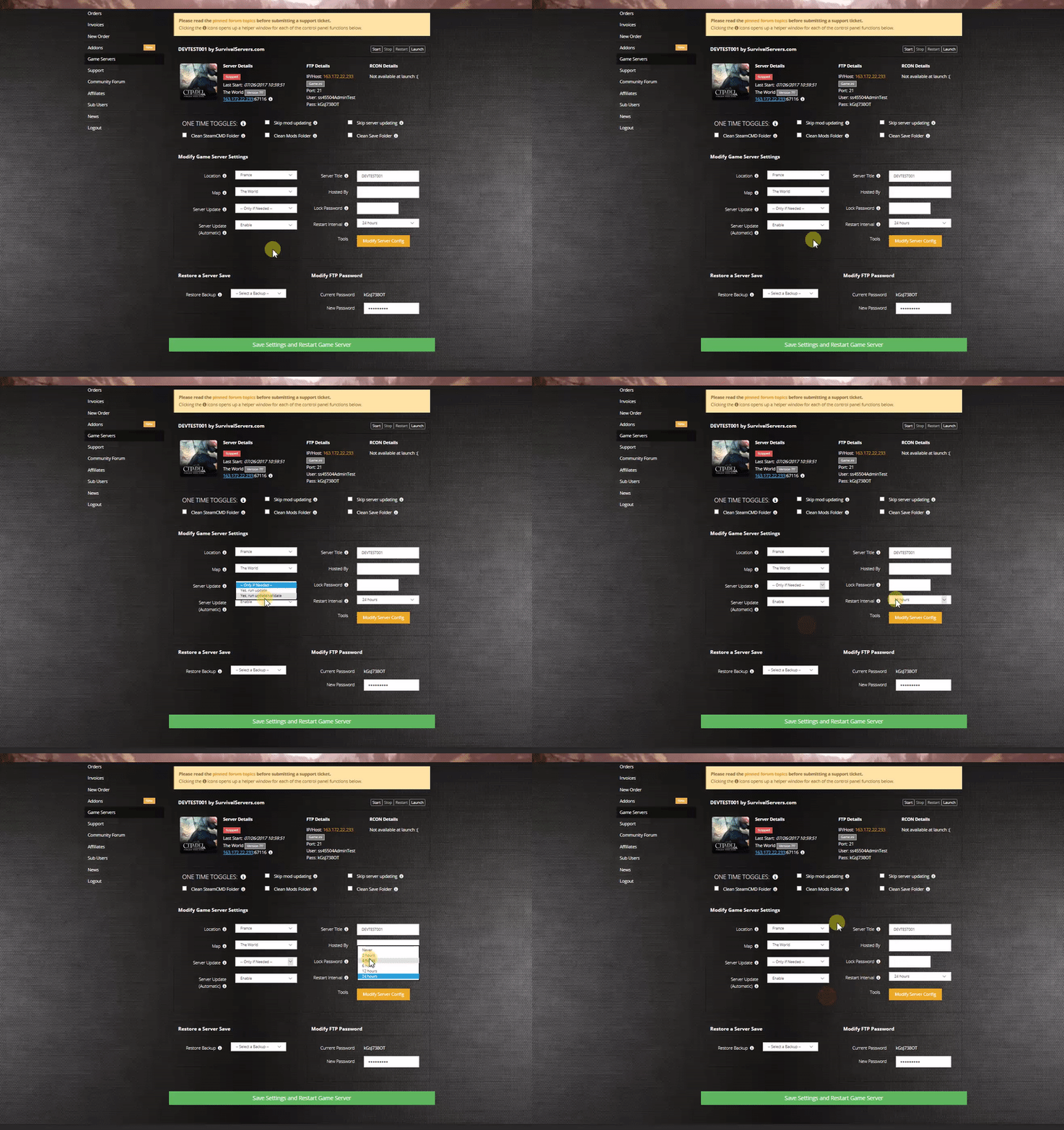
With a rented Windrose server from Survival Servers you get:
- Custom control panel (start/stop/restart, config editor, backups).
- High-clock dedicated hardware (no VPS).
- NVMe SSD storage.
- DDoS protection at all 8 global locations.
- Full FTP / SFTP file access.
- Multiple worldwide locations and the ability to switch locations at any time.
Option #2: Host Your Own Windrose Server
Want to run your own Windrose server at home or on your own hardware? This guide will walk you through everything step by step.
What You'll Need
Computer Requirements
| What | Minimum | Recommended |
|---|---|---|
| RAM | 4 GB | 6-8 GB |
| CPU | Modern 64-bit quad-core | Good single-thread performance |
| Storage | 30 GB free space | NVMe SSD |
| Operating System | Windows 10/11 or Windows Server (64-bit) | Same |
Software Requirements
- SteamCMD - Required to download the dedicated server files (App ID 3041230). Download it free from Valve's website.
- Visual C++ Redistributables - Included with the server files.
Step 1: Install SteamCMD
- Download SteamCMD from Valve's website.
- Extract it to a folder (e.g.,
C:\steamcmd\). - Run
steamcmd.exeand let it update.
Step 2: Download the Server Files
In the SteamCMD console, run:
login anonymous
force_install_dir C:\windrose-server
app_update 3041230 validate
quit
This downloads the Windrose dedicated server files to C:\windrose-server\.
Step 3: Start the Server for the First Time
- Open Command Prompt in your server folder.
- Run this command:
WindroseServer-Win64-Shipping.exe -log -MULTIHOME=0.0.0.0 -PORT=7777 -QUERYPORT=7778
The server will start up and create all its configuration files. You'll see text scrolling in the window as it loads.
Step 4: Set Up Port Forwarding (Required for Friends to Join)
Important: Windrose uses UDP ports 7777 and 7778 by default.
If you're hosting at home:
- Find your computer's local IP address (usually starts with 192.168).
- Log into your router's admin page (usually http://192.168.1.1 or http://192.168.0.1).
- Find the Port Forwarding section.
- Add new rules:
- Protocol: UDP (not TCP!).
- External Ports: 7777 and 7778.
- Internal Ports: 7777 and 7778.
- Internal IP: Your computer's local IP.
- Save the settings.
If you need help with your specific router, PortForward.com has guides for most router models.
Firewall Settings
You may also need to allow the ports through your firewall:
Windows:
netsh advfirewall firewall add rule name="Windrose Server" dir=in action=allow protocol=UDP localport=7777-7778
Step 5: Configure Your Server
After the first launch, the server generates configuration files. The main config file is:
R5\Saved\SaveProfiles\Default\ServerDescription.json
Important: Only edit this file when the server is shut down. The server may automatically overwrite changes if it detects issues.
See Windrose Server Configuration Guide for detailed configuration options including difficulty presets, multipliers, and world settings.
Understanding Your Server Files
After running the server, you'll see these folders and files:
| File/Folder | What It Does |
|---|---|
WindroseServer-Win64-Shipping.exe |
The server executable. |
R5\Saved\SaveProfiles\Default\ServerDescription.json |
Main server settings (invite code, password, max players). |
R5\Saved\SaveProfiles\Default\RocksDB\ |
World saves and player data. |
R5\Saved\Logs\ |
Server logs for troubleshooting. |
Engine\ |
Engine binaries and third-party libraries. |
Important: Always stop your server before editing configuration files!
Launch Parameters
| Parameter | Description |
|---|---|
-log |
Enable console logging. |
-MULTIHOME=0.0.0.0 |
Bind to a specific IP (use 0.0.0.0 for all interfaces).
|
-PORT=7777 |
Game port (default 7777). |
-QUERYPORT=7778 |
Query port (default 7778). |
Updating Your Server
Run the SteamCMD download command again to update:
steamcmd +login anonymous +force_install_dir C:\windrose-server +app_update 3041230 validate +quit
Important: Stop your server before updating.
Survival Servers customers receive automatic updates through the control panel.
Quick Reference
| Task | Command |
|---|---|
| Start server | WindroseServer-Win64-Shipping.exe -log -MULTIHOME=0.0.0.0 -PORT=7777 -QUERYPORT=7778
|
| Update server | steamcmd +login anonymous +force_install_dir C:\windrose-server +app_update 3041230 validate +quit
|
Tips for Better Performance
- Use an SSD - Solid state drives help the server load world data faster.
- Monitor your resources - Watch CPU and RAM usage while players are online to understand what your server needs.
- Adjust difficulty - Use the Windrose Server Configuration Guide to fine-tune multipliers for your group's skill level.
See Also
- Windrose Server Configuration Guide
- How to Join a Windrose Server
- Windrose Admin Commands
- Windrose on Steam
- Rent a Windrose Server from Survival Servers